

On this page
How to Cancel Fortnite Crew Subscription (Step-by-Step Guide)
If you’re trying to cancel Fortnite Crew, you’re probably dealing with a recurring charge you didn’t expect — or trying to stop a subscription your kid signed up for.
The good news? Canceling Fortnite Crew is quick once you know where to go.
👉 The most important thing to know:
Fortnite Crew subscriptions are managed through the platform you signed up on — not inside the game.
That means whether you're on PlayStation, Xbox, Nintendo Switch, PC, or mobile, the steps are slightly different.
Below, I’ll walk you through exactly how to cancel Fortnite Crew on every device.
How to Cancel Fortnite Crew (Quick Answer)
To cancel Fortnite Crew, go to your subscription settings on the platform you signed up with (PlayStation, Xbox, Nintendo Switch, or PC) and turn off auto-renewal.
Your subscription will remain active until the end of your billing period, but you won’t be charged again.
This works for all platforms, including PS5, Xbox, Nintendo Switch, PC, and mobile devices.
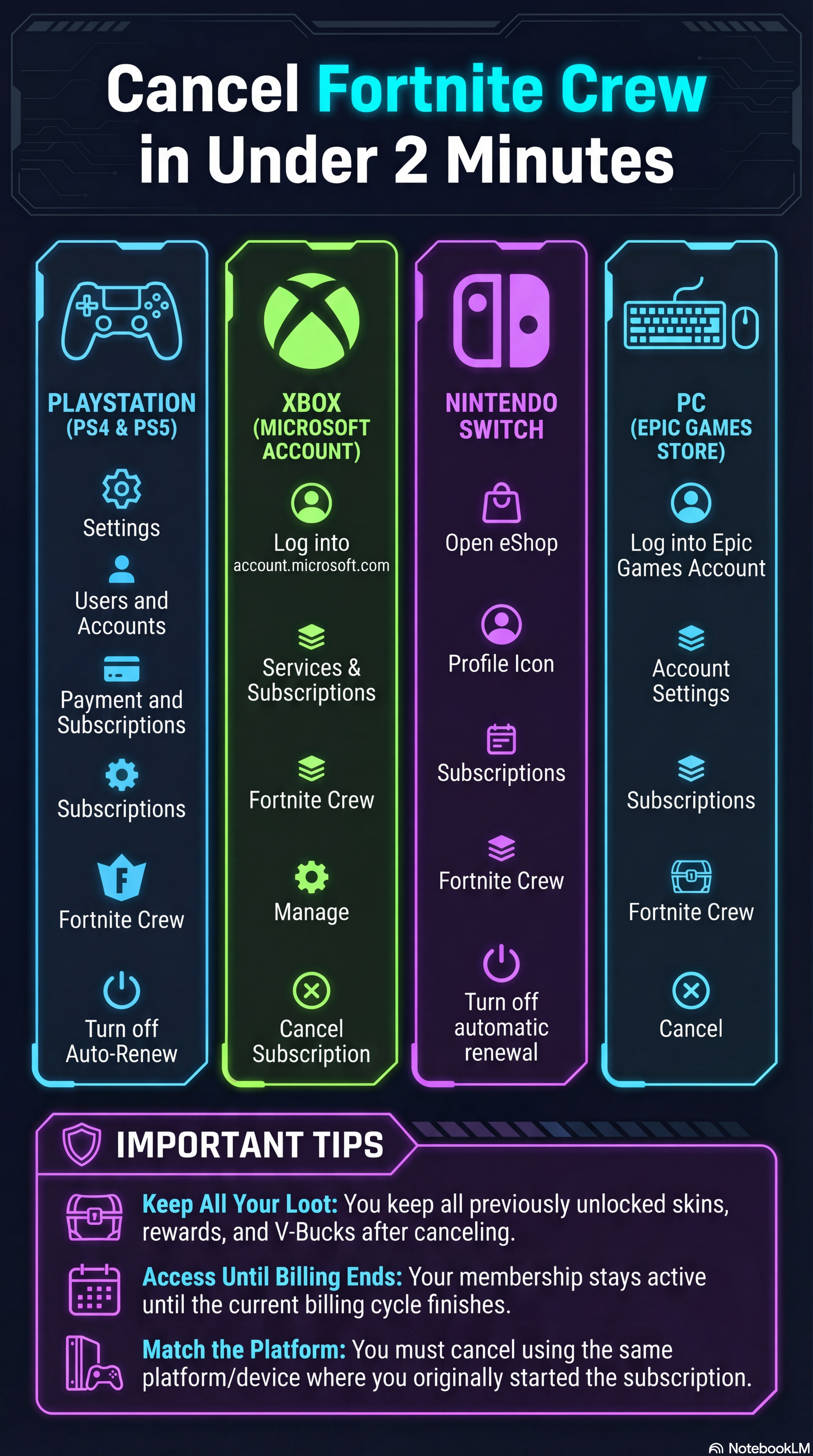
Where to Cancel Fortnite Crew (Important)
You cannot cancel Fortnite Crew directly inside Fortnite.
👉 You must cancel it through the platform where you originally subscribed.
For example:
- PlayStation subscriptions must be canceled through PlayStation settings
- Xbox subscriptions must be canceled through your Microsoft account
- PC subscriptions are managed through Epic Games
This is the #1 reason people think they can’t cancel Fortnite Crew.
How to Cancel Fortnite Crew Subscription (All Devices)
Cancel Fortnite Crew on PlayStation (PS4 & PS5)
- Go to Settings
- Select Users and Accounts
- Click Account → Payment and Subscriptions
- Select Subscriptions
- Choose Fortnite Crew
- Turn off Auto-Renew
Cancel Fortnite Crew on Xbox
- Go to account.microsoft.com
- Log into your account
- Navigate to Services & Subscriptions
- Find Fortnite Crew
- Click Manage → Cancel Subscription
Cancel Fortnite Crew on Nintendo Switch
- Open Nintendo eShop
- Select your profile icon
- Go to Subscriptions
- Find Fortnite Crew
- Turn off automatic renewal
Cancel Fortnite Crew on PC (Epic Games)
- Log into your Epic Games account
- Go to Account Settings
- Navigate to Subscriptions
- Select Fortnite Crew
- Cancel or disable auto-renew

How to Cancel Fortnite Crew on iPhone or Android
If the subscription was started on a mobile device, you’ll need to cancel it through Apple or Google.
On iPhone:
- Go to Settings
- Tap your Apple ID
- Select Subscriptions
- Find Fortnite Crew
- Turn off auto-renew
On Android:
- Open Google Play Store
- Tap your profile icon
- Go to Payments & Subscriptions
- Select Subscriptions
- Find Fortnite Crew
- Cancel subscription
How to Stop Fortnite Crew Auto Renewal
If you don’t want to be charged again but still want to use your remaining time:
👉 Just turn off auto-renew.
Your membership will stay active until the current billing cycle ends, and then it will stop automatically.
Why Can’t I Cancel Fortnite Crew?
If you’re having trouble canceling Fortnite Crew, it’s usually because:
- You’re trying to cancel from the wrong platform
- The subscription was purchased on a different device
- You’re logged into the wrong account
👉 Always cancel from the same platform where the subscription started.
What Happens After You Cancel Fortnite Crew?
Here’s what to expect after canceling:
- You keep all skins, rewards, and V-Bucks
- Your subscription stays active until the billing period ends
- You won’t be charged again
Can You Cancel Fortnite Crew Anytime?
Yes — Fortnite Crew can be canceled at any time.
There are no contracts, and once auto-renew is turned off, you won’t be billed again.
How to Check if Fortnite Crew Is Canceled
To confirm your subscription is canceled:
- Go to your platform’s subscription settings
- Locate Fortnite Crew
- Make sure auto-renew is turned OFF
FAQs About Canceling Fortnite Crew
How do I cancel Fortnite Crew on PS5?
Go to Settings → Users and Accounts → Subscriptions → Fortnite Crew → Turn off auto-renew.
How do I cancel Fortnite Crew on Xbox?
Log into your Microsoft account, go to Services & Subscriptions, and cancel Fortnite Crew there.
Why is Fortnite Crew still charging me?
This usually means auto-renew is still active or the subscription was canceled on the wrong platform.
Do you lose skins if you cancel Fortnite Crew?
No — all previously unlocked skins and rewards are yours to keep.
Is Fortnite Crew easy to cancel?
Yes — once you find the correct platform, the process takes less than a minute.
A Quick Dad Tip
If you’re dealing with subscriptions like this often, you might also want to read about managing kids and gaming habits.
I’ve been there too — the trick is figuring out which platform the subscription is tied to. Once you know that, canceling it takes less than a minute.
Helpful Resources
- Fortnite Crew subscription details: https://www.epicgames.com/fortnite/en-US/fortnite-crew-subscription
- Manage your Epic Games account: https://www.epicgames.com/account
Final Thoughts
Canceling Fortnite Crew is quick and straightforward once you know where to go. The most important thing is identifying the platform tied to the subscription.
Once you turn off auto-renew, you’re done — no more surprise charges.